THATGUYABHISHEK
navigation

Excel Charting : AI-Powered Chart Insights

notion image

Introduction

Charts don't create value — insights do. Yet Excel forced users to manually interpret every visualization. As Lead Designer for Copilot Chart Intelligence, I designed an AI-powered system that automatically surfaces key takeaways the moment a chart appears. This post-insert 'aha moment' increased chart retention by 15%, validated Copilot's value for non-coders, and fundamentally repositioned Excel as an analytical assistant, not just a calculation tool.
 
 
Results Overview

15%

Higher Chart Retention

65%

Positive Feedback Rate

2x

Copilot Engagement Lift

>95%

Factual Accuracy

The Problem: Charts Without Context Are Decoration

 
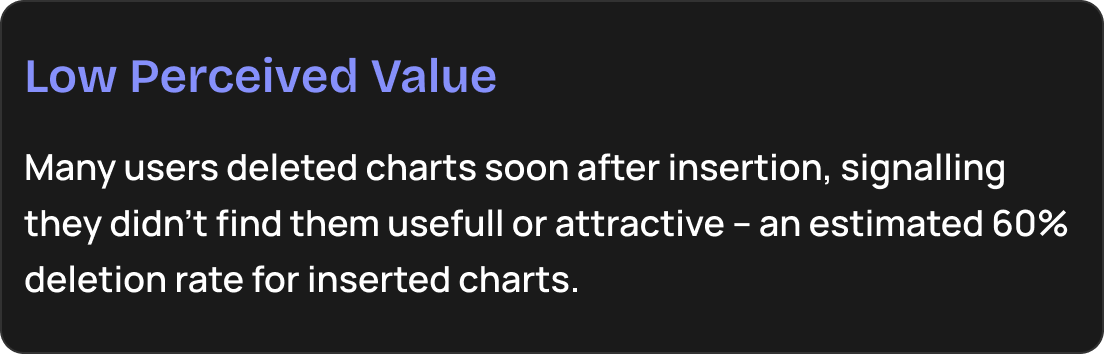
notion image
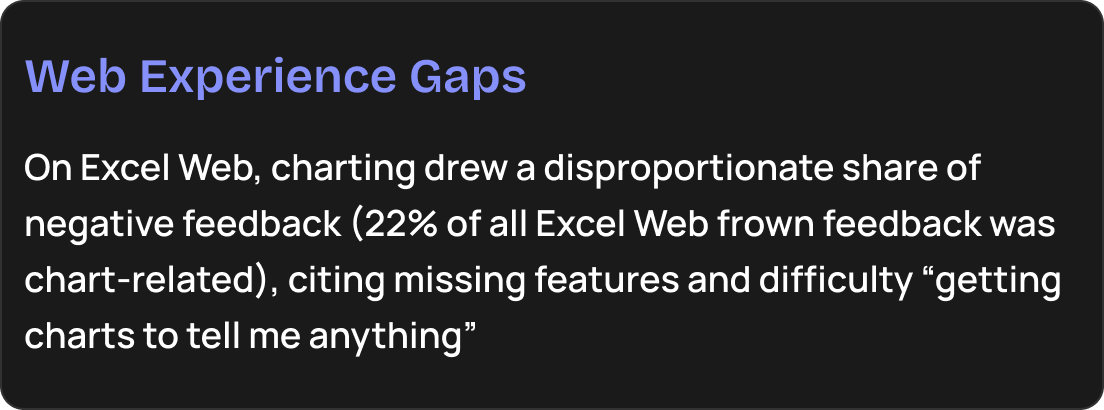
notion image
notion image
 
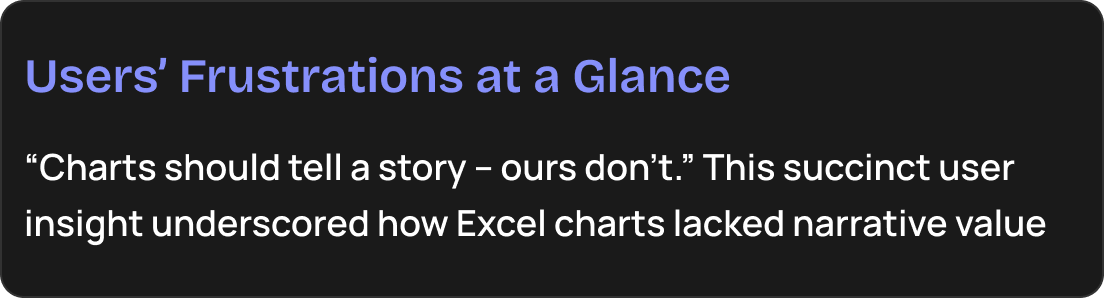
CORE INSIGHT: Users weren't struggling to make charts — they were struggling to extract meaning from them. Excel gave them the 'what' but never the 'so what?'
 
CRITICAL GAP: Competitors understood that modern data viz isn't just rendering pixels — it's helping humans think. Excel was stuck in the old paradigm.
 

The Business Case for AI Insights

This wasn't just feature parity — it was strategic necessity:
  • Copilot adoption lagged in Excel (10.8% usage vs. 17.1% chart creators) — we needed a killer use case
  • Differentiation opportunity — Native, editable charts with AI insights beat static AI-generated images
  • User expectation shift — After ChatGPT, users expected ALL tools to 'explain themselves'
  • NPS driver — Charts that deliver insights immediately would boost perceived value
 

What Users Were Telling Us

"The chart shows the data, but I still don't know what it means." — NPS Feedback
"I spend more time writing bullet points about the chart than creating it." — Enterprise User
"My manager asks 'so what?' and I have to explain manually." — Analyst
 

Why Competitors Were Winning

In our competitive analysis, tools like Tableau, Power BI, and AI-native platforms were delivering automatic insights:
Tableau: 'Explain Data' feature surfaced statistical anomalies
ChatGPT Data Analyst: Generated natural language summaries of uploaded CSVs
Google Sheets + Gemini: Proactive suggestions like 'This category is declining'
Napkin AI: Auto-generated visual explainers from text descriptions


The Opportunity

Why Chart Insights, Why Now: These competitive insights underscored that to stay relevant and delight users, Excel had to infuse intelligence directly into charting. It wasn’t enough to improve the UI or add new chart types; the next logical step was a Copilot-driven experience where the moment a user creates a chart, the software adds value by explaining the data.
Competitors were turning charts into “visual narratives” – combining charts with insights and even action suggestions
Metric
Value
Denominator
Meaning
2%
8M / 400M
Total Excel MAU
Overall market penetration
16.5%
4M / 24M
Copilot-enabled users
Chart usage among Copilot users
~11%
2.6M / 24M
Copilot-enabled users
Copilot usage among enabled users
5.5pp Gap
16.5 - 11 = 5.5
Activation opportunity
 
Among Copilot-enabled users, 16.5% create charts but only ~11% actively use Copilot features (November 2024 data). This 5.5pp activation gap represented a clear opportunity — users with Copilot access who chart frequently weren't leveraging AI features.
 
The Hypothesis: If we surface insights at the moment of chart insertion, users will find value in understanding their data immediately.
 
Chart Insights became the vehicle to deliver Copilot-driven experience. Internally, this framing helped rally support: it was not just a good-to-have feature, but a strategic response to competition and a necessary evolution of Excel’s core experience.
 
🎯
How Chart Insights Solves the Gap
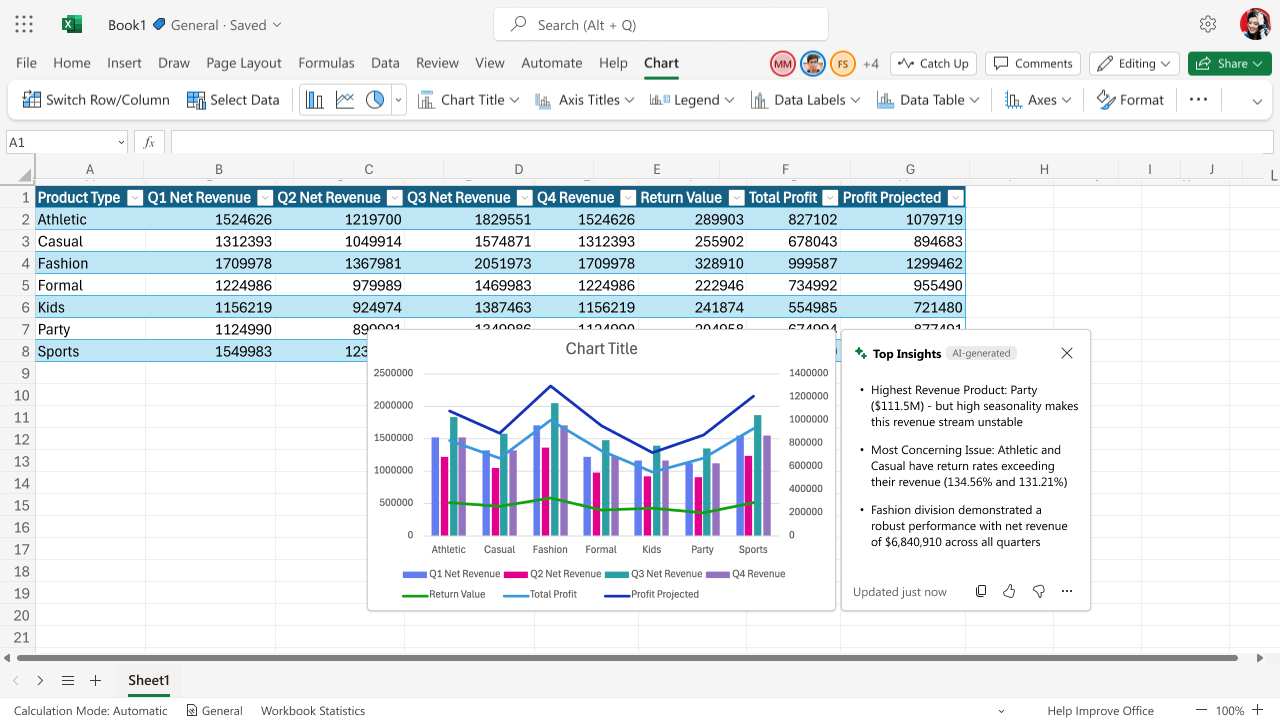
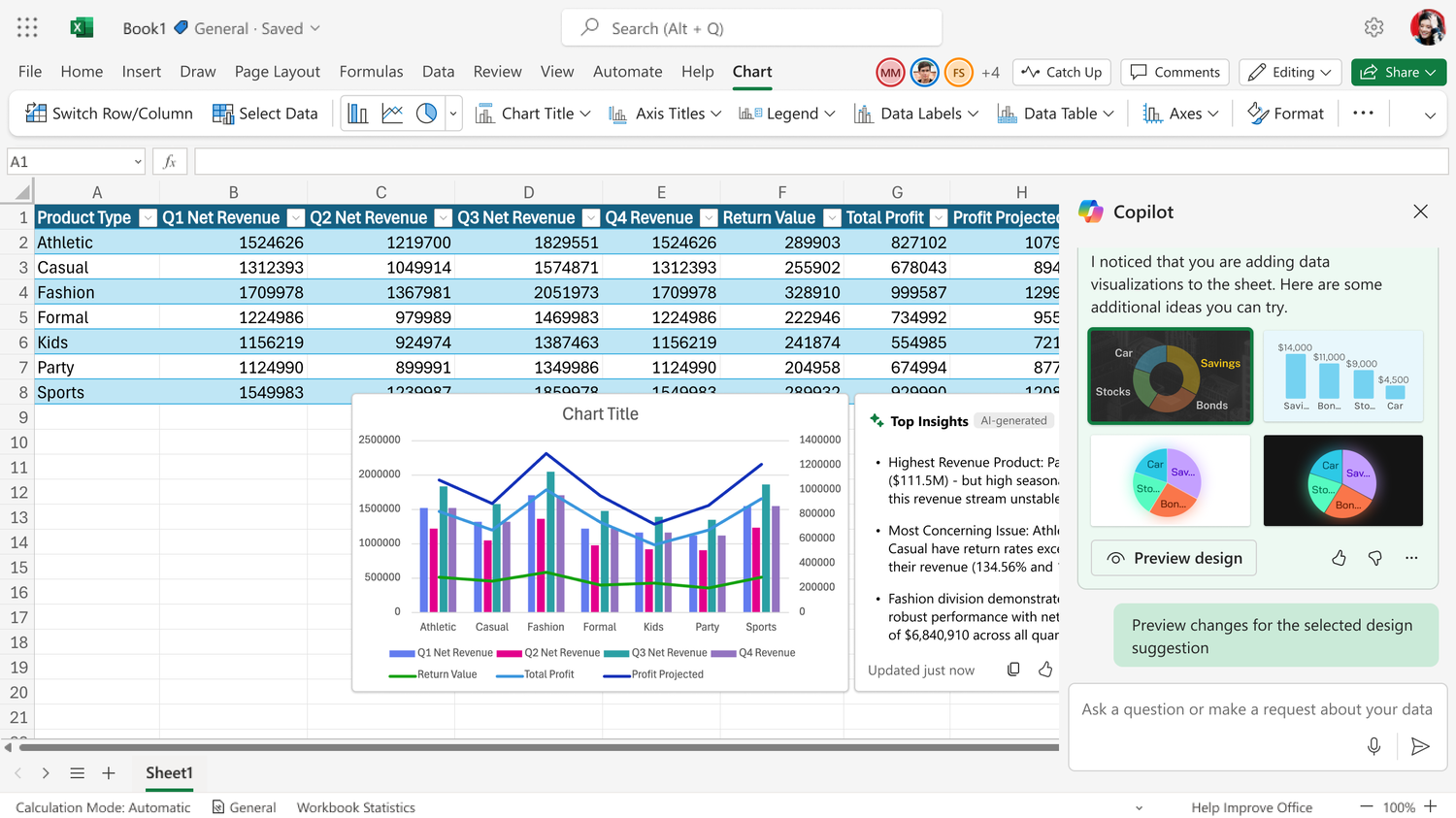
When you insert a chart, Copilot immediately answers “What does this show?” – e.g. “North region is the top contributor with 35% of total sales”. This turns a static chart into actionable insight and gives users an instant reward for using charts.
 
The Solution: Copilot Excel Chart Insights helps users instantly interpret data the moment a chart is inserted… surfaces key takeaways (growth patterns, anomalies, comparisons) right next to your chart… The feature simplifies analysis, saves time, and empowers users at all skill levels to make data-driven decisions directly in Excel.
 
Immediate User Benefit
New chart creators get an “aha!” moment within seconds. Instead of puzzling over the chart, they see keyy finding pop up. This drives home the calue of charting (and Copilot) right away, encouraging more frequent usage.
 

JTBDs

Understanding what users are actually trying to accomplish when they create and analyze charts in Excel.
Make Sense of My Data Instantly
When I...
Insert a chart to visualize quarterly revenue data across product lines
I want to...
Immediately understand what patterns, trends, and anomalies exist without manually calculating statistics or staring at the chart for 10 minutes
So I can...
Confidently present findings to my manager, make data-driven decisions faster, and avoid missing critical business insights
Without...
Spending 20+ minutes manually analyzing every data point, second-guessing my interpretation, or relying on my manager to spot issues I missed
 
Validate My Analysis Before Sharing
When I...
Create a chart for a high-stakes presentation (board meeting, executive review)
I want to...
Get a second opinion from AI to confirm my interpretation is correct, or alert me to patterns I might have missed
So I can...
Present with confidence, avoid embarrassing mistakes, and discover insights that make me look smart rather than missing obvious trends
Without...
Asking my manager to double-check every chart, staying up late rechecking numbers, or getting called out in a meeting for missing something obvious
Communicate Data Stories Effectively
When I...
Need to present analysis to stakeholders who don't have time to dig into raw data
I want to...
Have ready-made narrative bullets that explain what the chart shows in plain language, with the option to copy them directly into emails or presentations
So I can...
Save hours writing explanatory text, ensure I'm communicating the most important findings, and look like a data expert even if I'm not
Without...
Spending 30+ minutes writing bullet points, worrying I'm focusing on the wrong metrics, or having my manager ask 'what about X?' that I completely missed
 
Learn to Think Like a Data Analyst
When I...
Work with data regularly but don't have formal analytics training
I want to...
See examples of how experienced analysts interpret data, so I can learn what questions to ask and what patterns matter
So I can...
Develop my analytical skills over time, become less dependent on others, and eventually spot these patterns myself
Without...
Taking a formal data analytics course, bothering my analyst colleagues with basic questions, or relying on trial-and-error that wastes time
 

My Role: Designing Intelligence, Not Just Interfaces

  • UX strategy for Copilot Chart Intelligence — defining what 'insights' meant for different chart types and user contexts
  • Cross-functional collaboration — partnered with AI/ML team, PM, and Data Science to shape LLM prompts
  • Information architecture — designed insight panel UI, interaction patterns, and refresh logic
  • Failure mode handling — what happens when AI can't generate insights? Graceful degradation patterns
  • Accessibility — screen reader support, ARIA labels, keyboard navigation for AI-generated content
  • Telemetry design — defining success metrics, instrumentation plan, and feedback mechanisms
 
notion image
Crawl (MVP) — Prove the Core Value
Success criteria: 40% click rate achieved vs. 20% target
Validation: A/B test for chart retention, Copilot activation
Performance target: P95 <20s generation
Interaction: Click → popover → thumbs feedback → Ask Copilot
Constraints: Creator-only, no persistence, native charts only
Scope: Skittle button on chart insert (Web first), 1-3 insights, manual refresh
Show static insights on chart insertion to validate whether automatic, immediate analysis delivers value.
notion image
Walk — Make It Interactive & Contextual
Enrich insights with responsiveness to chart edits and expand access to chart consumers.
Responsive insights: Auto-update when chart type/data changes
On-demand access: Right-click any chart → Generate Insights
Persistent insights: Save as chart property, visible to collaborators
Enhanced interaction: Copy text, "Explain why" button, hide individual insights
Platform parity: Win32, Mac support, multi-chart scenarios
Edge cases: Trendlines, empty charts, error recovery
notion image
Run — Deep AI Analysis & Storytelling
Transform insights into a conversational analytical assistant with cross-chart narratives and M365 integration.
Conversational analysis: Embedded Copilot chat with context maintenance
Cross-chart insights: Multi-chart narratives and high-level summaries
Visual highlights: Link insight text to chart elements (hover to highlight)
M365 integration: Send to PowerPoint with auto-generated slides
Advanced analytics: Predictive trends, correlations, diagnostic analysis, benchmarking
Vision: Excel as AI-driven analysis platform with intelligent partnership
notion image
 

The MVP : Version 1

 
notion image
notion image
notion image
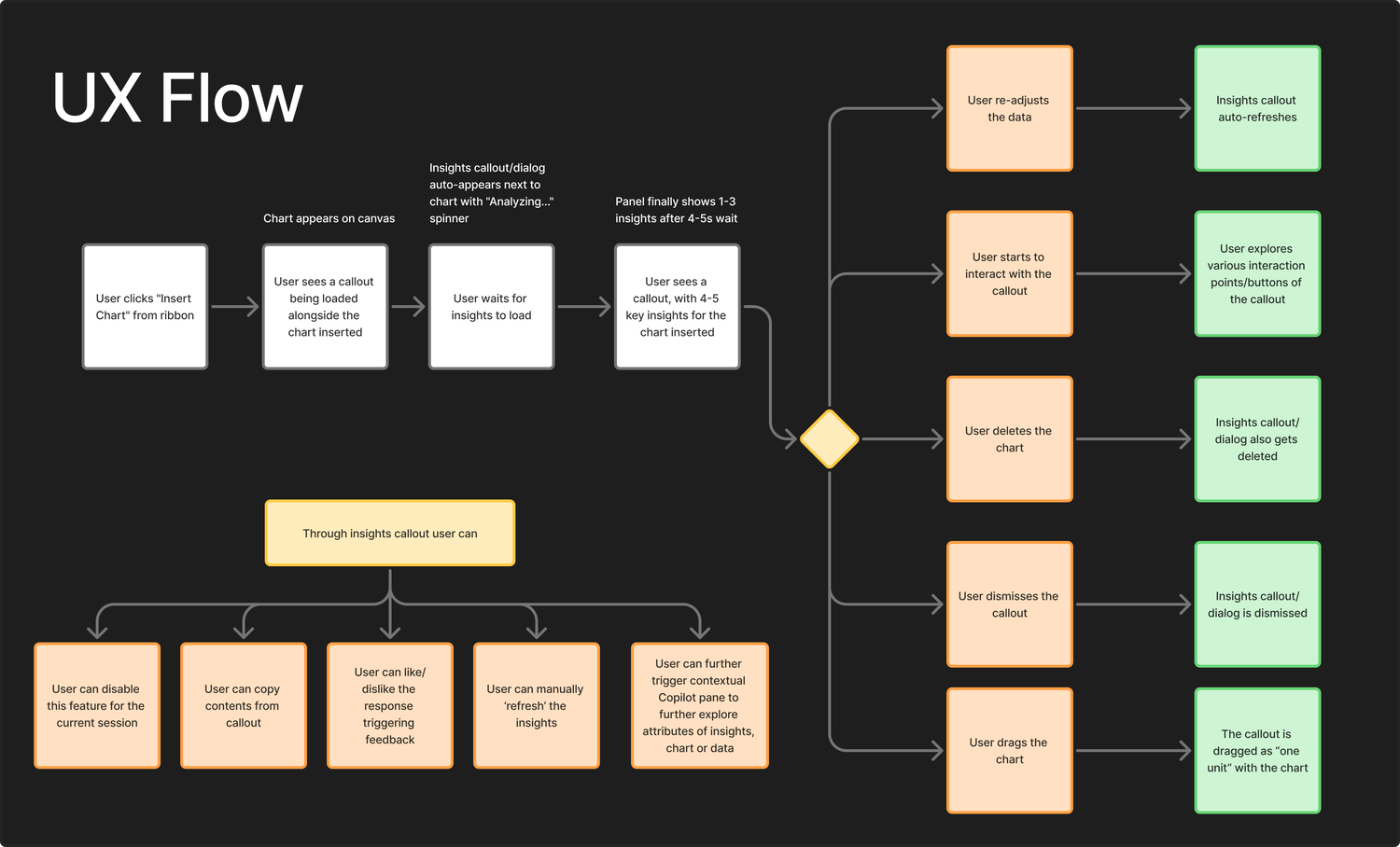
If dismissed users can trigger back insights from right-click menu or through chart ribbon menu
notion image
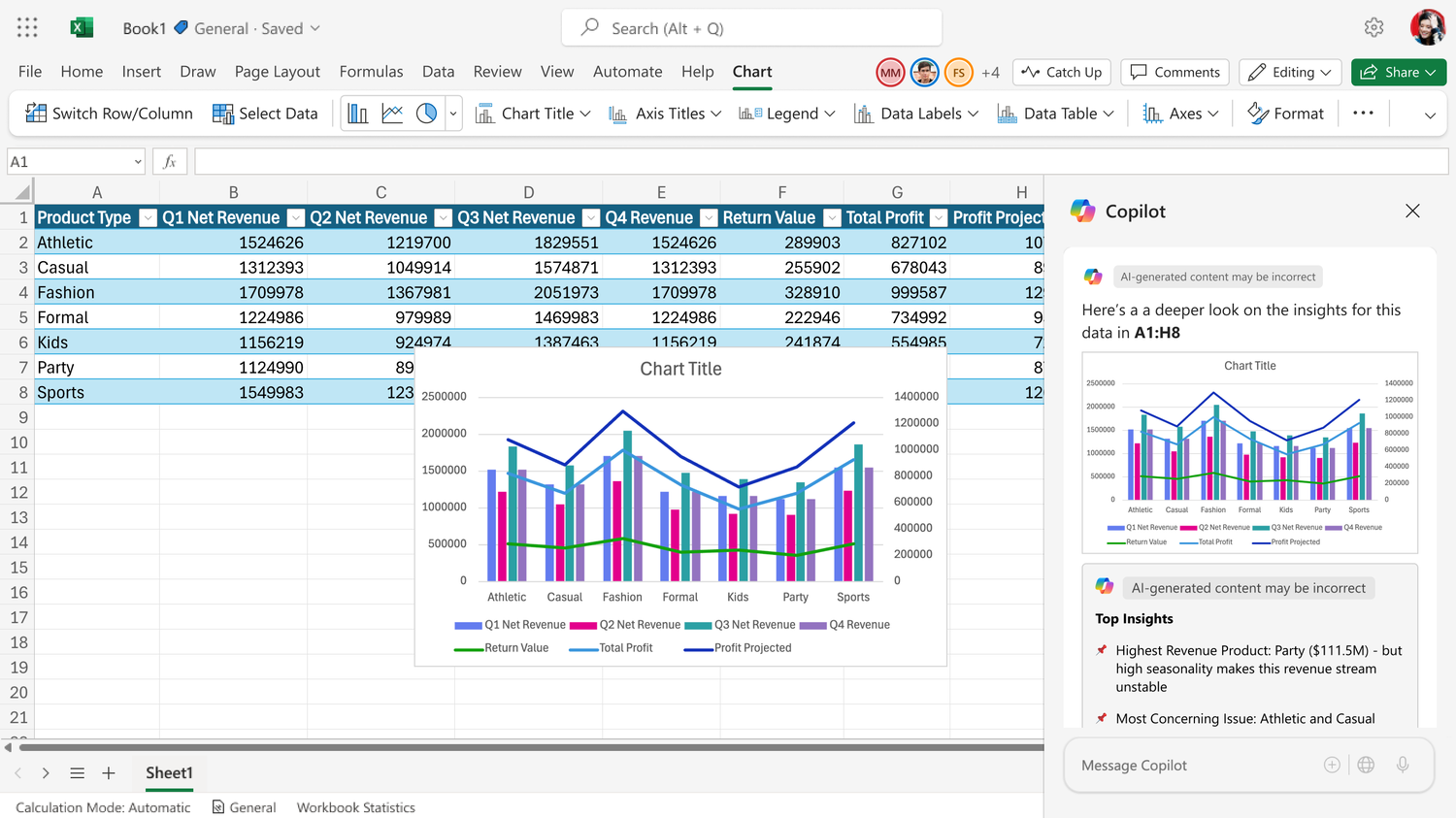
Another version exploring the Copilot pane instead of on-canvas dialog
notion image

The Collision: When Reality Punched Back

notion image

Problem 1: Latency Hell

We designed for <5s latency, got >30s reality. Next time: prototype with artificial delays from day one. Assume performance will be worse than promised.
  • Initial LLM insight generation: >30 seconds
  • User expectation: Chart appears instantly (<500ms)
  • Gap: 30s of 'Analyzing...' spinner = perceived slowness, broken flow
I inserted the chart and just... waited. It felt broken. I thought Excel crashed.
notion image

Problem 2: Real Estate War

Users clearly preferred on-canvas overlay, but technical and real estate constraints made it impossible in its original form. The skittle button preserved the contextual proximity users loved while solving latency and space problems.
  • Chart Design Recommendations (separate feature) also trigger on 'Insert Chart'
  • Design Recs appear in Copilot side pane (right side)
  • On-canvas insights panel = 300px wide
  • Low-res screens (1366x768, common in enterprise): No space left for actual chart work

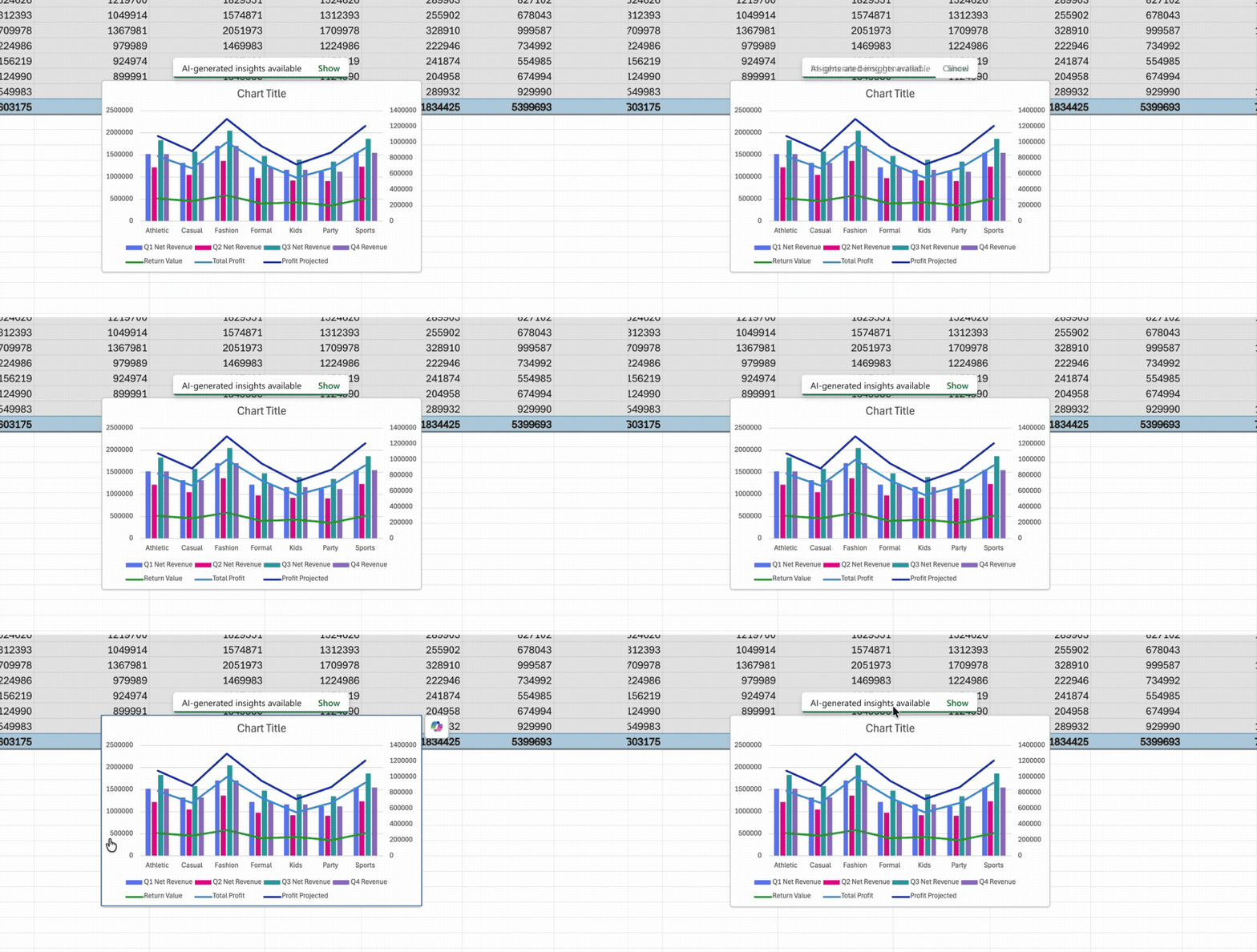
Version 2: Introducing the Skittle

 
notion image
 
notion image
We also added a pop-over toast to highlight

Key Design Decisions & Trade-offs

Auto-Trigger vs. On-Demand
Choice: Auto-trigger on insert (with easy dismiss)
Why: Testing showed users didn't know to ASK for insights. Making it proactive was key to discovery.
 
Inline Panel vs. Sidebar
Choice: Floating panel anchored to chart
Why: Sidebars compete with other UI. Inline feels contextual, less like 'another feature' and more like 'the chart explaining itself'
Manual Refresh Only
Choice: No auto-refresh on data changes
Why: Performance risk, user distraction, and testing showed users preferred control. They'll hit refresh when ready.
 
Thumbs Feedback Over Ratings
Choice: Binary thumbs up/down, not 5-star scale
Why: Lower friction, higher response rate. We cared more about volume of feedback than granularity.
 

Impact & Results

Quantitative Impact (Early Testing, FY25)
  • 15% increase in chart retention
  • Charts with insights 2x more likely to be kept vs. control group
  • 65% positive thumbs-up rate
  • Far above our 50% goal — users found insights genuinely helpful
  • 40% interaction rate with insight panel
  • Hovering, scrolling, or clicking — strong engagement signal
  • >95% factual accuracy
  • Manual evaluation of 500+ insights — no hallucinated numbers or false statements
Qualitative Feedback
  • "This is cool! I inserted a chart and Excel told me something I hadn't noticed." — Dogfood User
  • "The insights were relevant and saved me from writing a summary." — Financial Analyst
  • "Finally feels like Excel is smart, not just a calculator." — Power User
Critical feedback we addressed:
  • Some insights felt 'obvious' for simple data — tuned LLM to focus on non-trivial patterns
  • Panel sometimes covered data — adjusted positioning logic
  • Wanted ability to save insights to cell comments — added to Walk phase roadmap
Strategic Impact
  • Validated Copilot value prop — Showed AI adds value even for non-coders (chart users aren't Power Query experts)
  • Differentiated Excel in market — Only tool with native, editable charts + AI insights (Competitors had either/or)
  • Repositioned Excel as analytical assistant, not just spreadsheet
  • Unlocked future roadmap — Proved AI in charting works, green-lit Walk and Run phases
 

Key Learning

Prototype Latency Variations Earlier
Built for <5s latency, got >30s reality. Had to pivot mid-sprint.
Next time: Design for 10x slower than best case. Prototype with artificial delays (5s, 15s, 30s). Have backup pattern ready from day one.
Map Real Estate Conflicts Earlier
Designed in isolation, learned about Design Recs conflict late.
Next time: Audit all features that trigger on same event. Test on 1366x768 screens from day one. Involve PM in multi-feature roadmap alignment earlier.
Build Instrumentation Into Design From Day One
Defined metrics after design was done. Had to retrofit event tracking.
Next time: Create telemetry schema during wireframing. Every interaction state = logged event. Treat telemetry as a design deliverable.
Test With Messy Data From Day One
Tested with clean datasets (5 columns, 100 rows), shipped to messy reality (500 columns, formulas, merged cells).
Next time: Start with messiest data first. Create 'data chaos test suite' for prompt validation. Design failure states as prominently as success states.

The Bigger Lesson

AI features succeed when they
 
✅  Solve a clear job-to-be-done: Not 'AI for AI's sake' but 'help me understand my data'
✅  Appear at the right moment: Context matters more than capability
✅  Build trust through accuracy: One wrong insight destroys 10 good ones
✅  Empower, don't replace: Users still own the analysis; AI just helps them see faster
 
 
badge